Remote Desktop users rarely care why an application is running slowly.
They do not see server lead times, GPU availability, licensing restrictions or infrastructure budgets. They see a screen that takes too long to redraw, an application that freezes during an important task or a remote session that cannot keep up with their work.
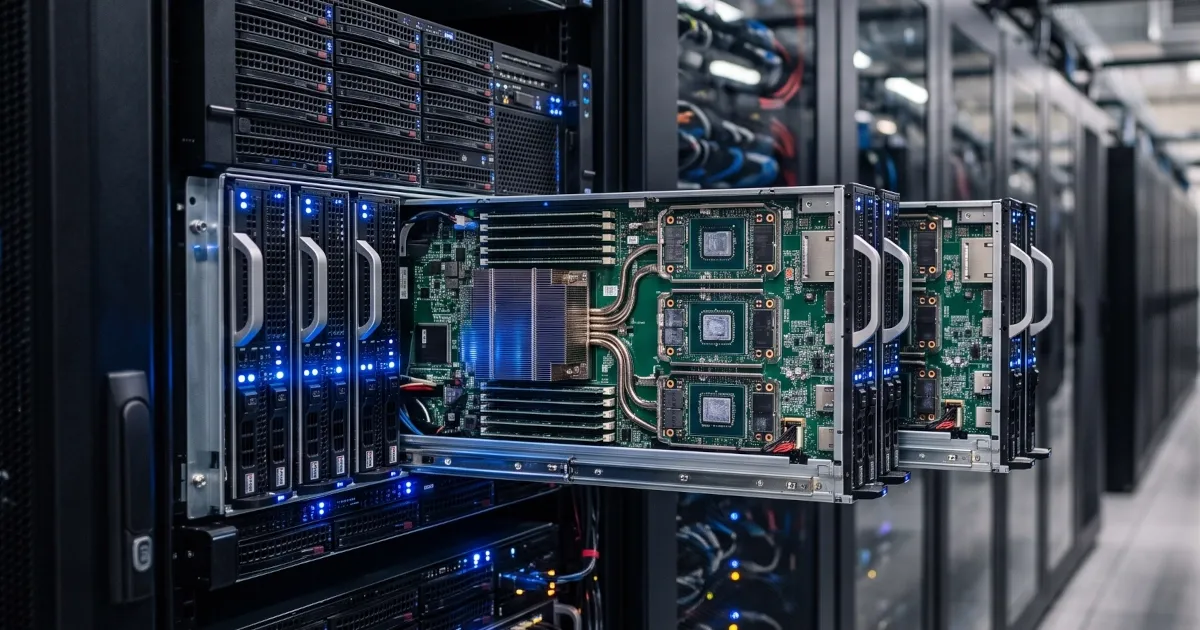
That creates a difficult decision for IT teams. Graphics-intensive applications may be outgrowing the current Remote Desktop Services environment, but the preferred GPU server or blade could cost tens of thousands of dollars and take months to arrive.
Waiting creates a poor user experience. Rushing into a new hardware configuration can introduce support, compatibility and reliability problems.
Fortunately, buying the newest available GPU server is not the only option. Organizations can extend their existing infrastructure, source alternative equipment, reconsider how GPUs are assigned to virtual machines or use cloud capacity as a temporary bridge.
The right answer depends on what the workload actually needs, how quickly capacity is required and what will happen to the hardware after the immediate problem is solved.
The GPU capacity problem is bigger than the GPU
When an RDS environment begins struggling with graphics-intensive applications, it is tempting to assume that installing a larger GPU will fix everything.
Sometimes it will. Other times, the GPU is only one part of the problem.
Performance can also be limited by:
- Insufficient memory
- Slow or overloaded storage
- CPU contention
- Network latency
- Application design
- Driver compatibility
- VM configuration
- Too many users sharing the same resources
Before purchasing new equipment, establish a performance baseline. Review which applications are slow, how many users are affected, when performance drops and which resources are saturated during those periods.
This helps prevent an expensive hardware purchase that solves the wrong problem.
It also gives the infrastructure team a clearer target. Instead of asking, "What GPU server should we buy?" the team can ask, "What is the fastest, lowest-risk way to deliver the performance these users need?"
Option 1: Extend the life of your current infrastructure
A delayed refresh does not always require an immediate platform change.
If the existing servers, storage and network equipment are still capable of supporting the workload, extending that environment may provide time to test alternatives and wait for better hardware availability.
Possible steps include:
- Adding memory or supported processors
- Replacing aging drives with enterprise SSDs
- Moving VM storage to faster shared storage
- Redistributing workloads across existing hosts
- Replacing failed or constrained components
- Separating graphics-heavy users from general RDS users
- Maintaining current equipment beyond its original warranty
This approach is especially useful when the preferred replacement equipment has a long lead time or the organization is already planning a larger infrastructure change.
The primary risk is support. An organization should not assume that equipment must be replaced simply because the OEM warranty or support contract has expired. Third-party hardware maintenance can provide parts replacement and technical support for servers, storage and networking equipment while the organization completes its testing, migration or purchasing process.
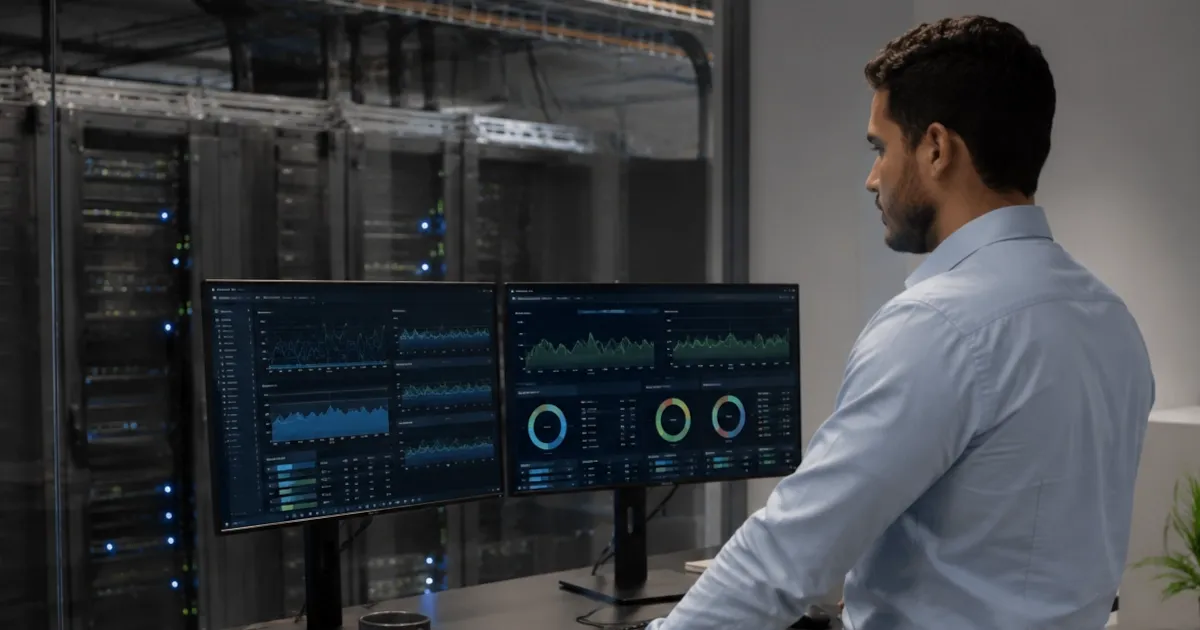
ReluTech's third-party maintenance service helps organizations continue operating eligible data center equipment without committing to another long OEM renewal. Coverage can also be structured around the expected transition period instead of forcing the business into a multi-year agreement.
Extending the current environment is not the right choice for every workload, but it can prevent a temporary availability problem from forcing a rushed long-term decision.
Option 2: Source an alternative GPU-capable server
The exact server originally specified may not be the only equipment capable of supporting the workload.
Depending on the application and availability requirements, an organization may be able to use:
- A different enterprise server model
- Previous-generation equipment
- A GPU-capable tower server
- A refurbished rack server
- A short-term rental
- Equipment from another approved manufacturer
This can significantly reduce lead time, but the decision should not be based on GPU specifications alone.
Before selecting an alternative system, verify:
- GPU and PCIe compatibility
- Available PCIe lanes and slot dimensions
- Power supply capacity
- Cooling requirements
- Supported operating systems
- Hypervisor compatibility
- Driver availability
- Remote management capabilities
- Redundant power and storage options
- Replacement-part availability
- Application support requirements
- Vendor licensing restrictions
A workstation or tower server may appear to deliver similar compute capacity for a fraction of the price of a blade or rack-mounted system. However, it may not provide the same redundancy, remote management, supportability or uptime.
That does not automatically make it the wrong choice. It means the organization must understand the tradeoff.
For a temporary workload, proof of concept or limited group of users, a lower-cost system may be sufficient. For a production environment supporting critical users, enterprise features and parts availability may justify the higher cost.
ReluTech can help source both new and previous-generation enterprise hardware, including configurations that may be available sooner than a standard OEM order. Rental equipment can also provide temporary capacity without turning a short-term requirement into a permanent capital purchase.
Option 3: Reconsider how the GPU is virtualized
The physical server is only one side of the decision. IT teams also need to determine how the GPU will be presented to the workload.
Common options include:
- Assigning an entire GPU to one virtual machine
- Sharing a GPU between several virtual machines
- Running RDS directly on a physical server
- Creating a separate host for graphics-intensive users
- Moving selected workloads to another hypervisor
- Using cloud GPU instances
For Hyper-V environments, Microsoft supports Discrete Device Assignment, or DDA. DDA allows an entire compatible PCIe device, such as a GPU, to be passed through to a virtual machine. The guest VM can then use the device's native drivers and access the assigned hardware directly. Microsoft notes that hardware compatibility, security requirements and VM configuration must be reviewed before deployment.
DDA dedicates the physical device to one VM. The host cannot simultaneously use that GPU, and the same GPU cannot be divided among several VMs through DDA.
Windows Server 2025 also supports GPU partitioning. Instead of assigning the entire device to one VM, GPU partitioning allows multiple virtual machines to receive dedicated portions of a supported physical GPU. Microsoft specifically identifies virtual desktop infrastructure and graphics-heavy visualization workloads as use cases for the feature.
GPU partitioning has stricter requirements than simply installing a graphics card in a server. Supported processors, GPUs, operating systems and drivers must be used. Clustered configurations also require consistent GPU models and partition settings across participating hosts.
Remote Desktop Services may require additional configuration after a GPU is assigned. Microsoft instructs administrators to enable the Group Policy setting that allows hardware graphics adapters to be used for all Remote Desktop Services sessions when the guest does not automatically recognize the GPU.
These options make it possible to build a more flexible RDS environment, but they should be tested with the actual applications users will run. An application may support a GPU on a physical workstation but behave differently inside a virtual machine. Some vendors also limit which GPU models, drivers or virtual environments they support.
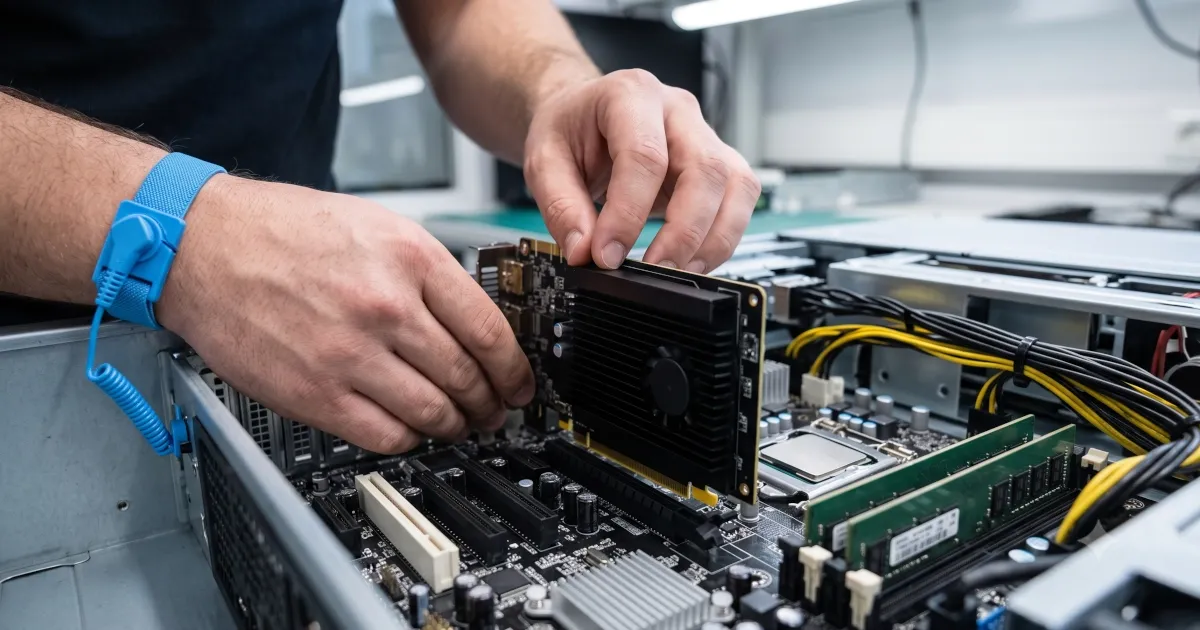
A successful lab test should verify more than whether the VM can see the GPU. It should also measure:
- Application responsiveness
- Concurrent user capacity
- Session stability
- Driver reliability
- CPU and memory utilization
- Storage performance
- Reboot and recovery behavior
- Backup compatibility
- Monitoring visibility
The goal is not simply to prove that GPU passthrough works. The goal is to determine whether the complete environment can reliably support users in production.
Option 4: Use cloud GPU capacity as a bridge
Cloud GPU infrastructure can provide another path when physical equipment is unavailable or demand is uncertain.
Instead of waiting months for hardware, an organization may be able to deploy a cloud-based environment and pay for capacity as it is used.
This can work well when:
- The requirement is temporary
- Demand changes significantly throughout the week
- A project needs to begin before hardware arrives
- Users are geographically distributed
- The organization is already moving workloads to the cloud
- The business wants to test demand before purchasing equipment
However, cloud GPUs are not automatically less expensive.
The full comparison should include:
- Expected hours of use
- GPU instance pricing
- Storage costs
- Data transfer
- Backup and recovery
- Application licensing
- Connectivity requirements
- Latency
- Security controls
- Internal administration
- Long-term growth
A cloud GPU may be attractive when it can be shut down outside working hours. It may become more expensive when it must operate continuously or support a large number of persistent desktops.
The best choice may also be hybrid. An organization could use cloud capacity for temporary demand while continuing to run predictable workloads on existing infrastructure.
Compare the full cost, not just the purchase price
A less expensive server can still become the more costly choice if it requires frequent troubleshooting, lacks replacement parts or cannot support future application updates.
A more expensive enterprise platform may also be difficult to justify if it arrives after the immediate need has passed.
When comparing options, include:
- Hardware purchase price
- Financing or cost of capital
- Delivery time
- Installation and configuration
- Software and hypervisor licensing
- Power and cooling
- Support contracts
- Internal labor
- Expected useful life
- Downtime exposure
- Residual equipment value
Lead time has a cost too.
If users remain unproductive for six months while the organization waits for the preferred hardware, that delay should be considered alongside the purchase price. The same is true when a delayed infrastructure project prevents the business from launching a service, supporting customers or completing engineering work.
Build a bridge plan instead of making a panic purchase
The immediate goal may be better RDS performance, but the organization should also consider how the decision fits into its broader infrastructure lifecycle.
A practical bridge plan has four stages.
1. Assess the workload
Document the applications, number of users, performance requirements, expected growth and availability needs.
Separate users who require GPU acceleration from those who can remain on the existing environment.
2. Review the current estate
Identify available servers, storage, GPUs, licenses and spare equipment.
Determine which systems can be upgraded, repurposed or supported longer.
3. Select the bridge
Choose the most appropriate combination of:
- Existing hardware
- Alternative enterprise equipment
- Refurbished equipment
- Rental infrastructure
- Hyper-V GPU assignment
- GPU partitioning
- Dedicated physical RDS servers
- Cloud GPU capacity
The bridge should meet the immediate requirement without preventing the organization from reaching its preferred future state.
4. Plan the exit
Temporary equipment has a way of becoming permanent when no exit has been defined.
Before purchasing or deploying the bridge environment, determine:
- How long it will be used
- What will replace it
- Whether it can be repurposed
- Whether it will retain resale value
- How data will be securely removed
- How the equipment will be decommissioned
When the permanent environment is ready, ReluTech's IT asset disposition services can securely process retired equipment and help recover value from eligible servers, storage, networking equipment and GPUs.
This keeps temporary infrastructure from becoming another pile of unused assets occupying data center space.
Choosing the right response to GPU server delays
There is no single answer to an unavailable or overpriced GPU server.
The right decision may be to extend the current environment. It may be to purchase a different server, deploy a temporary rental, use GPU passthrough or move selected workloads to the cloud.
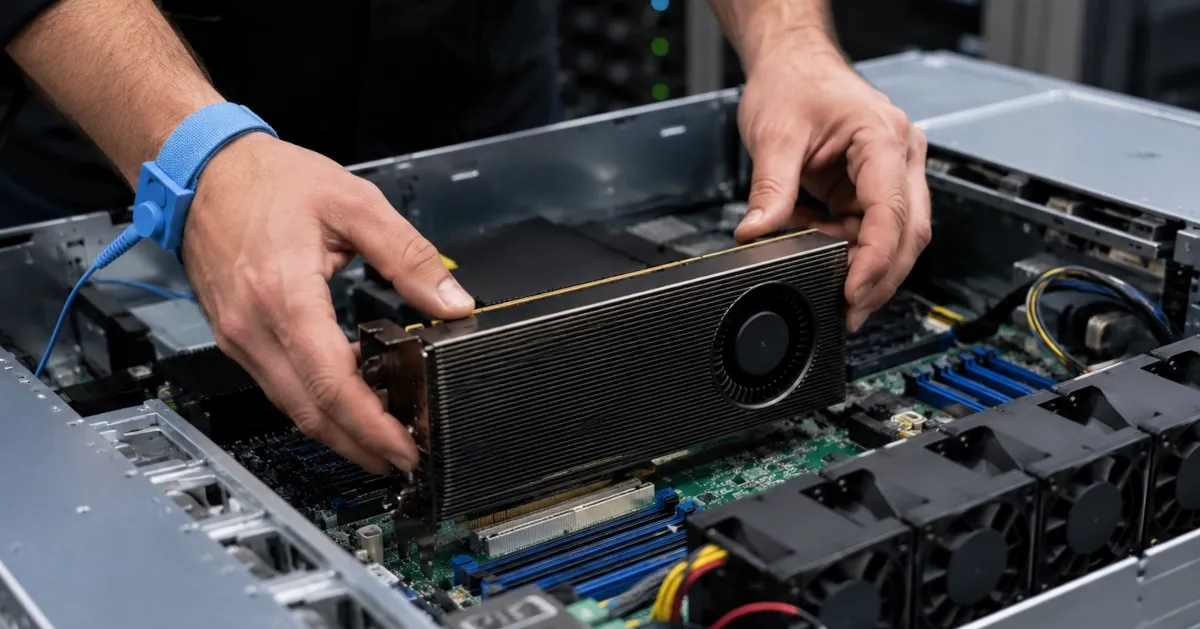
What matters is that the organization does not treat the immediate hardware shortage as an isolated purchasing problem.
It is a lifecycle decision involving performance, support, availability, cost and eventual asset retirement.
ReluTech helps organizations address each stage of that decision. We can maintain existing infrastructure, source alternative hardware, provide temporary equipment and securely retire assets once the transition is complete.
Dealing with delayed or overpriced server hardware?
Request a Hardware Availability and Lifecycle Review. ReluTech can evaluate your current equipment, help identify available alternatives and build a plan for supporting and retiring the infrastructure around your transition.
Frequently asked questions
What is a GPU server?
A GPU server is a server equipped with one or more graphics processing units. GPUs can accelerate graphics, visualization, virtual desktop, artificial intelligence, machine learning and other workloads that benefit from parallel processing.
Can Hyper-V pass a GPU through to a virtual machine?
Yes. Hyper-V supports Discrete Device Assignment, which allows a compatible PCIe device to be assigned to a VM. The hardware, drivers, host and guest operating systems must support the configuration.
Can Windows Server 2025 share a GPU between multiple VMs?
Yes. Windows Server 2025 supports GPU partitioning, which allows supported physical GPUs to be divided into dedicated portions assigned to separate virtual machines. Supported hardware and drivers are required.
Is a tower server suitable for Remote Desktop Services?
It can be, depending on the workload and business requirements. Before using a tower server in production, consider redundancy, remote management, power, cooling, parts availability, warranty coverage and the consequences of downtime.
Should I buy a refurbished GPU server?
Refurbished or previous-generation enterprise equipment can be a good option when delivery time and budget are major concerns. Confirm the server supports the required GPU, operating system, hypervisor, drivers and applications before purchasing.
How can I support older servers while waiting for a refresh?
Third-party maintenance can provide replacement parts and technical support for eligible post-warranty servers, storage and networking equipment. This can help bridge the period between the end of OEM coverage and the completion of a hardware refresh or cloud migration.
